

In this tutorial, you will learn how to set up and configure Traefik as a reverse proxy using Docker Compose. Traefik offers a modern and flexible solution to manage traffic for your applications, ensuring they are securely accessible over the internet. We will cover the configuration of docker-compose.yml, traefik.toml, traefik_dynamic.toml, and acme.json. Additionally, we will explain what a reverse proxy is and why certificates are important for securing your applications.
Preparation: Clone the Git Repository
Before we begin, clone the Traefik repository from GitHub:
git clone https://github.com/traefik/traefik.git
cd traefik
1. What is Traefik and a Reverse Proxy?
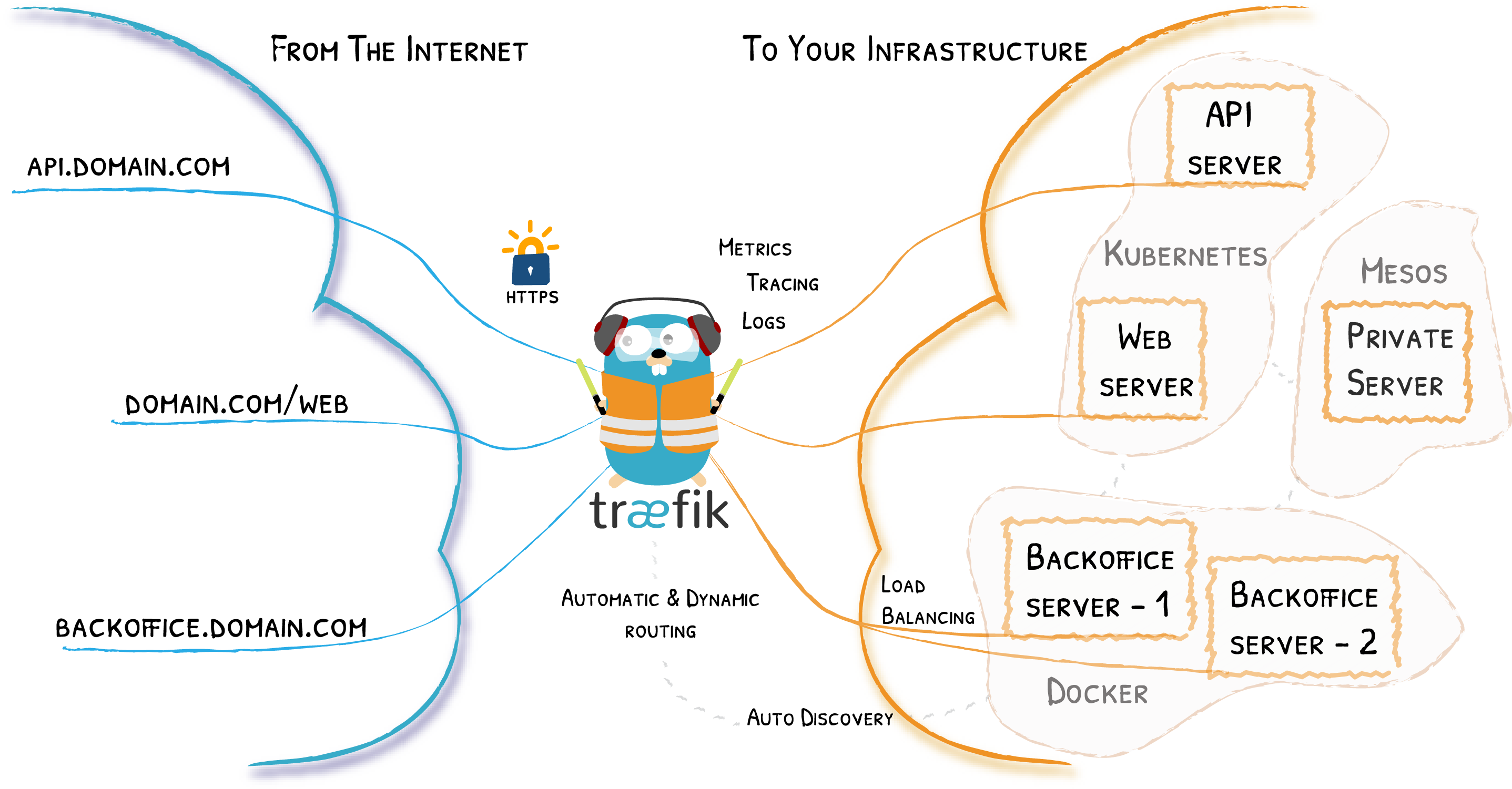
Traefik is a modern reverse proxy and load balancer specifically designed for container-based and microservices architectures. It offers automatic service discovery and configuration, SSL/TLS certificate management, and much more.
A Reverse Proxy is a server that receives requests from clients and forwards them to one or more backend servers. The reverse proxy acts as an intermediary between clients and the actual services, enabling features such as load balancing, SSL encryption, and caching.
2. Configuration of docker-compose.yml
The docker-compose.yml file defines the services and networks required for Traefik.
Example docker-compose.yml:
version: '3.7'

services:
  traefik:
    image: traefik:v3.0
    container_name: traefik
    restart: unless-stopped
    ports:
      - "80:80"
      - "443:443"
    volumes:
      - /var/run/docker.sock:/var/run/docker.sock
      - ./traefik.toml:/traefik.toml
      - ./traefik_dynamic.toml:/traefik_dynamic.toml
      - ./acme.json:/acme.json
    networks:
      - web

networks:
  web:
    external: true
Important Note: Every container that should be connected to Traefik must be added to the web network. Here is an example of how to do this in a Docker Compose file for a service:
version: '3.7'

services:
  myservice:
    image: myimage
    networks:
      - web
      - other_network

networks:
  web:
    external: true
  other_network:
    driver: bridge
3. Configuration of traefik.toml
The traefik.toml file contains basic settings for Traefik, including the definition of entry points, enabling the dashboard, and managing SSL certificates.
Example traefik.toml:
[entryPoints]
  [entryPoints.web]
    address = ":80"
    [entryPoints.web.http.redirections.entryPoint]
      to = "websecure"
      scheme = "https"

  [entryPoints.websecure]
    address = ":443"
    [entryPoints.websecure.http.tls]
      certResolver = "lets-encrypt"

[api]
  dashboard = true

[certificatesResolvers.lets-encrypt.acme]
  email = "example@example.com"  # Replace this with your email address
  storage = "acme.json"
  [certificatesResolvers.lets-encrypt.acme.httpChallenge]
    entryPoint = "web"

[providers.docker]
  watch = true
  network = "web"

[providers.file]
  filename = "traefik_dynamic.toml"
Explanation of the traefik.toml Configuration:
- EntryPoints: These define the ports on which Traefik listens for requests.
web: Listens on port 80 for HTTP connections.websecure: Listens on port 443 for HTTPS connections.-
Redirection from HTTP to HTTPS:
entryPoints.web.http.redirections.entryPoint.to = "websecure"ensures that all HTTP requests are automatically redirected to HTTPS, providing a secure connection. This enhances security by ensuring that all connections are encrypted. -
API: Enables the Traefik dashboard, which provides useful information about the configuration and status of Traefik.
-
Certificates Resolvers: This configuration allows Traefik to automatically obtain and manage SSL certificates from Let's Encrypt. Here:
emailis the contact email address used for certificate notifications.storagedefines the file where the certificates are stored.-
httpChallengespecifies the HTTP endpoint used for certificate validation. -
Providers:
- Docker:
providers.dockerenables Traefik to automatically discover Docker containers and add them as services.watch = trueensures that Traefik continuously monitors for changes in Docker containers.network = "web"ensures that Traefik only recognizes containers in thewebnetwork. - File:
providers.fileloads additional configurations from thetraefik_dynamic.tomlfile. This is useful for complex settings that cannot be accommodated in the main configuration file.
4. Configuration of traefik_dynamic.toml
The traefik_dynamic.toml file is used for dynamic configurations such as routers and middleware.
Example traefik_dynamic.toml:
[http.middlewares.simpleAuth.basicAuth]
  users = [
    "admin:$apr1$VATlJAVP$w.fo1IG.3DTzdkyVOG/xT1"
  ]

[http.routers.api]
  rule = "Host(`traefik.your-domain.com`)"  # Replace this with your domain
  entrypoints = ["websecure"]
  middlewares = ["simpleAuth"]
  service = "api@internal"
  [http.routers.api.tls]
    certResolver = "lets-encrypt"
Explanation of the traefik_dynamic.toml Configuration:
- Middleware Authentication:
- Basic Auth: The
basicAuthmiddleware provides simple HTTP basic authentication. Users and passwords are specified in the formuser:hashed_password. -
Password Hashing: It is important that the password is hashed to enhance security. Use a tool like
htpasswdto hash the password. Here is an example of how to do this:This generates an output likehtpasswd -nb admin your_passwordadmin:$apr1$VATlJAVP$w.fo1IG.3DTzdkyVOG/xT1, which you can insert into your configuration file. More information can be found in the official Traefik documentation on Basic Auth. -
Router Configuration:
- Rule:
rule = "Host(traefik.your-domain.com)"specifies that this router responds to requests fortraefik.your-domain.com. Replacetraefik.your-domain.comwith your own domain. - Entrypoints:
entrypoints = ["websecure"]indicates that this router only processes HTTPS requests. - Middlewares:
middlewares = ["simpleAuth"]attaches the previously defined authentication middleware to this router. - Service:
service = "api@internal"ensures that requests are forwarded to Traefik's internal API service. - TLS:
certResolver = "lets-encrypt"specifies that an SSL certificate should be obtained from Let's Encrypt for this router.
5. Use of acme.json
The acme.json file stores information about the SSL certificates issued by Let's Encrypt and managed by Traefik. This file is automatically created and updated by Traefik with each certificate renewal.
Example acme.json:
The file is automatically created and managed. Here is a highly simplified example:
{
  "Account": {
    "Email": "example@example.com",  # Replace this with your email address
    "Registration": {...}
  },
  "Certificates": [
    {
      "Domain": {
        "Main": "example.com"
      },
      "Certificate": "...",
      "Key": "...",
      "Store": "..."
    }
  ]
}
Automatic Creation: This file is automatically created during the first run of Traefik and updated with each certificate renewal. Traefik creates an entry in this file for each new container that requires an SSL certificate. The acme.json contains all necessary information for managing the certificates, including the required registration details and keys for the individual certificates.
Conclusion
You are now ready to use Traefik to manage your applications securely and efficiently!
If you have questions or need assistance with setting up or configuring Traefik, our Discord channel is available to you. Join our community to exchange ideas with other users for quick help and valuable tips. Here is the link to the Discord Channel. We look forward to seeing you!
Here are the links in Markdown format:
Other Useful Blog Posts
- Deploy Mattermost with Traefik Labels and Use Under DNS Entry
- Deploy Vikunja with Traefik Labels and Use Under DNS Entry
- Deploy Portainer with Traefik Labels and Use Under DNS Entry
- Deploy StirlingPDF with Traefik Labels and Use Under DNS Entry
- Deploy Paperless-ngx with Traefik Labels and Use Under DNS Entry